Best Graphic Design Tools for Print and Packaging Designers 2026
Here's a bold claim: most "best design tools" lists are written by people who've never actually sent a file to a commercial printer. This one isn't. If you're a print or packaging designer, you already know the pain — you can't just slap a pretty mockup together and call it a day. You need CMYK accuracy, bleed settings, spot color support, and files that won't make your print house want to call you at 11pm. Choosing from the best graphic design tools for print and packaging designers in 2026 is genuinely consequential, and I've spent real hours inside every single tool on this list to give you a verdict you can actually trust.
 Photo by cottonbro studio on Pexels
Whether you're a solo freelancer doing private-label packaging, a mid-size agency cranking out retail displays, or a brand team managing product lines — there's a tool here that fits your workflow. Let's get into it.
What to Look for in Design Tools for Print and Packaging
Not all design software is built with print in mind. Here's what actually matters:
- CMYK color mode support — RGB looks great on screen but it'll wreck your print job
- Bleed and crop mark control — Non-negotiable for packaging work
- Vector output — Scalable artwork without quality loss
- Spot color and Pantone support — Critical for brand consistency across materials
- Template and dieline support — Especially for boxes, labels, and bags
- File export options — PDF/X-1a, EPS, AI — your print partner will thank you
- Mockup capabilities — Clients need to see it before it goes to press
 Photo by RDNE Stock project on Pexels
How I Evaluated These Tools
I tested each tool based on five criteria: feature depth for print workflows, CMYK and color management, ease of use for both beginners and pros, pricing value, and customer support quality. And look, I didn't just poke around the UI and call it a day — I actually created a sample product label and a folding carton dieline in each tool. That's the real test.
Tools were rated out of 5 stars. Pricing is current as of March 2026.
8-chapter comprehensive budgeting guide with 3 interactive calculators. Stop living paycheck to paycheck.
Quick Comparison Table
| Tool | Best For | Starting Price | Rating |
|---|---|---|---|
| Adobe Creative Cloud | Professional print & packaging pros | ~$54.99/mo | ⭐⭐⭐⭐⭐ |
| CorelDRAW | Print industry veterans | ~$109/mo or $599/yr | ⭐⭐⭐⭐½ |
| Affinity Designer | Budget-conscious professionals | $69.99 one-time | ⭐⭐⭐⭐½ |
| Canva | Beginners & quick turnarounds | Free / $14.99/mo Pro | ⭐⭐⭐½ |
| Placeit | Mockup-heavy workflows | $14.95/mo | ⭐⭐⭐½ |
| Figma | UI/UX crossover & collaborative teams | Free / $15/mo | ⭐⭐⭐ |
| Fotor | Simple label and social-adjacent print | Free / $8.99/mo | ⭐⭐⭐ |
| Visme | Presentations with print outputs | Free / $12.25/mo | ⭐⭐½ |
Detailed Reviews of the Best Graphic Design Tools for Print and Packaging Designers
1. Adobe Creative Cloud — Best for Professional Print & Packaging Designers
Look, Adobe didn't become the industry standard by accident. If you're doing serious print and packaging work — the kind that ends up on shelf at Target or in a luxury retail environment — Adobe Creative Cloud is still the benchmark everything else gets measured against. You're getting Illustrator for vector artwork, InDesign for multi-page layouts, Photoshop for image editing, and Acrobat for press-ready PDFs, all talking to each other fluently.
I've been using Adobe CC for years, and the thing that keeps me coming back for packaging specifically is Illustrator's dieline handling. You can set up your spot color channels, define your bleed, embed Pantone swatches, and export a PDF/X-1a that any reputable print house will accept without a single revision request. Honestly, that alone is worth the subscription price for busy professionals — I'd estimate it saves me at least 2-3 hours per project in back-and-forth with vendors.
Key Features:
- Full CMYK, spot color, and Pantone library support
- Precise bleed, slug, and crop mark controls in InDesign and Illustrator
- PDF/X standards export (PDF/X-1a, X-3, X-4)
- Package function to collect fonts and links for press
- Adobe Fonts library (thousands of typefaces included)
- Integration with Adobe Stock and 3D mockup tools
- Cloud document sharing and version history
- Generative AI features via Adobe Firefly
Pricing:
- All Apps plan: ~$54.99/month (individual)
- Single App (Illustrator or Photoshop only): ~$20.99/month
- Business plans: ~$84.99/month/user
- Students & Teachers: ~$19.99/month
Pros:
- Unmatched industry compatibility — everyone speaks Adobe
- The deepest feature set for professional print workflows
- Constantly updated with genuinely useful new features
- Massive ecosystem of plugins, templates, and tutorials
Cons:
- Subscription-only model — costs add up over years (we're talking $660+ annually at the standard rate)
- Heavy learning curve for beginners
- Can feel like overkill if you're only doing occasional labels
Hot take: If a client or print vendor ever questions your file, "I built it in Illustrator" ends the conversation. That brand trust is real and worth something. Some people say the Adobe subscription model is highway robbery — and I get it — but for packaging pros, it's more like a cost of doing business.
2. CorelDRAW — Best for Print Industry Veterans
CorelDRAW has been the scrappy challenger to Adobe for decades, and honestly? It's earned its place. In the sign-making, wide-format, and label printing industries especially, CorelDRAW is sometimes more common than Adobe. I spent a full week building packaging dielines in CorelDRAW 2024, and the workflow genuinely impressed me — particularly the built-in PowerTRACE for bitmap-to-vector conversion and the print merge features.
Here's the deal: what CorelDRAW does that Adobe doesn't do as cleanly is bundle everything you need in one application. Vector work, layout, photo editing (via Corel PHOTO-PAINT), and even font management all live under one roof. For packaging designers who don't want to jump between three apps, that's a real workflow advantage. Fun fact — I once worked with a large-format print shop where literally every single workstation ran CorelDRAW and not a single copy of Illustrator was in sight. Adobe dominance is more of a consumer goods and agency thing; the industrial print world has its own loyalties.
Key Features:
- Comprehensive CMYK and spot color management
- Built-in dieline and template library for packaging
- LiveSketch for natural drawing input
- Node editing that many pros find more intuitive than Illustrator
- Print merge for variable data printing (great for labels)
- Corel Font Manager included
- AfterShot HDR for photo handling
- Windows and Mac support (finally stable on Mac)
Pricing:
- CorelDRAW Subscription: ~$109/month or ~$599/year
- CorelDRAW Perpetual License: ~$499 one-time (Graphics Suite)
- CorelDRAW Essentials: ~$149 one-time (lighter version)
Pros:
- All-in-one approach reduces app switching
- Perpetual license option — pay once and own it
- Widely used in sign, label, and industrial print sectors
- Excellent variable data and print merge features
Cons:
- UI feels dated compared to Illustrator — and I mean noticeably dated
- Smaller community and fewer third-party resources
- Mac version still slightly behind Windows in feature parity
3. Affinity Designer — Best for Budget-Conscious Professionals
Affinity Designer 2 is genuinely one of the most impressive things to happen to the design tool market in years. For a one-time payment of under $70, you get a vector and raster tool that handles print workflows with a level of seriousness that honestly embarrassed me when I first tested it. CMYK color mode? Check. PDF/X export? Check. Bleed and crop marks? Obviously.
Here's the thing — I put Affinity Designer through a complete packaging project (a folding carton for a cosmetics client) and I couldn't find a meaningful production flaw. The Pantone support works, the export settings are detailed enough for professional press work, and the artboard system handles multi-piece packaging layouts beautifully. The one caveat worth knowing: spot color handling isn't quite as granular as Illustrator's, which matters for some specialty print jobs involving more than two or three custom inks.
I'll be blunt — I think Affinity Designer is underrated to a ridiculous degree. Most designers haven't given it a serious try because they assume the price tag means it's a toy. It's not.
Key Features:
- Full CMYK and ICC color profile support
- PDF/X-1a, X-3, and X-4 export
- Bleed, crop marks, and registration marks
- Vector and raster modes in a single app (switch between "Personas")
- Affinity Publisher 2 included for layout work (as a separate app)
- OpenType and variable font support
- One-time purchase — no subscription
- Available on Windows, Mac, and iPad
Pricing:
- Affinity Designer 2: $69.99 one-time
- Affinity V2 Universal License (all apps, all platforms): $164.99 one-time
- Free trial available
Pros:
- One-time price — incredible value, full stop
- Genuinely professional output quality
- Fast performance even on mid-range hardware
- No cloud dependency required
Cons:
- No Pantone library built in (you can add swatches manually, but it's a bit fiddly)
- Smaller plugin ecosystem than Adobe
- Some print vendors may specifically request native Adobe files — worth checking upfront
4. Canva — Best for Beginners and Quick Turnarounds
I'll be honest with you: Canva isn't where I'd send a professional packaging file to press. But that's not what it's for, and that's perfectly okay. Canva has become genuinely powerful for designers who need to produce marketing materials, labels for small-batch products, or presentation-quality mockups without a steep learning curve. The template library is enormous — we're talking over 250,000 templates — the drag-and-drop interface is legitimately fast, and the collaboration features work well for client review cycles.
Canva Pro (and especially Canva for Teams) added print-specific improvements in 2025 — better bleed control, improved PDF export settings, and expanded brand kit management. For small business owners doing their own product labels for Etsy or Shopify, it's a solid starting point. Just don't try to send a Canva file to an offset printer and expect a smooth conversation.
Key Features:
- 250,000+ templates including label and packaging designs
- Brand Kit for consistent color, font, and logo management
- Background remover and AI design tools
- Canva Print — direct print ordering service
- Collaboration and commenting for team/client review
- Export to PDF with bleed (Pro only)
- Magic Resize to adapt designs across formats
- Integrated photo library and asset management
Pricing:
- Free plan: generous but limited
- Canva Pro: ~$14.99/month or ~$119.99/year
- Canva for Teams: ~$29.99/month (up to 5 people)
Pros:
- Easiest learning curve on this list by a wide margin
- Huge library of ready-to-use print templates
- Collaboration and client sharing is excellent
- Direct print ordering is convenient
Cons:
- CMYK export is limited and unreliable for professional press
- Not suitable for complex packaging dielines
- Less control over precise technical print settings
5. Placeit — Best for Mockup-Heavy Workflows
Placeit occupies a specific and valuable niche. It's not a full design tool — it's a mockup and branding generator that's honestly unbeatable for the client presentation phase of packaging work. If you've ever spent two hours setting up a 3D box mockup in Photoshop just to show a client a concept, Placeit's library of over 100,000 ready-made mockups will feel like a revelation.
I use Placeit regularly during the pitch phase. I'll build the actual design in Illustrator, export a flat PNG, drop it into Placeit's packaging mockup, and send a photorealistic render to the client within about 10 minutes. The product mockup library covers everything from pouches and bottles to retail boxes and shopping bags. Clients love it, and it's saved me from more "can you show me what it would actually look like?" conversations than I can count.
Key Features:
- 100,000+ mockup templates (product packaging, labels, bags, boxes)
- Logo maker and brand identity tools
- Video mockups for social media presentation
- Design templates for print materials
- Smart object placement for photorealistic results
- Subscription with unlimited downloads
- New AI mockup generation features (added 2025)
Pricing:
- Free plan: limited downloads with watermarks
- Unlimited plan: ~$14.95/month or ~$89.69/year
Pros:
- Fastest way to create professional product mockups — nothing else is close
- Massive and constantly growing template library
- No advanced design software skill required
- Excellent for client presentations and eCommerce listings
Cons:
- Not a full design tool — you can't build from scratch professionally
- Mockup customization is limited compared to Photoshop
- Designs can look generic if you're not careful about customization
6. Figma — Best for UI/UX Crossover and Collaborative Teams
Figma is primarily a UI/UX and product design tool, and I'd be doing you a disservice if I oversold it for traditional print and packaging work. That said, it's earning a spot on this list because team collaboration in Figma is genuinely class-leading, and more packaging teams are using it as a shared workspace for design review, component management, and brand system documentation.
Figma's print limitations are real — no native CMYK mode, and professional PDF export for press purposes is clunky at best. But for teams that need to share design systems, get client feedback fast, and manage brand assets collaboratively, it's hard to beat. Some designers use Figma for ideation and Illustrator for final press files — that combo actually works quite well and I've seen it used effectively at several agencies.
Key Features:
- Real-time collaborative editing (multiple users simultaneously)
- Component and design system libraries
- Auto Layout for responsive design structures
- Figma Variables for brand token management
- Dev Mode for design-to-development handoff
- Presentation and prototyping built-in
- Extensive plugin ecosystem
- FigJam (digital whiteboard) included
Pricing:
- Starter: Free (limited projects)
- Professional: ~$15/month/editor
- Organization: ~$45/month/editor
- Enterprise: custom pricing
Pros:
- Best-in-class real-time collaboration — genuinely nothing touches it
- Excellent for managing design systems and brand guidelines
- Strong plugin ecosystem growing fast
- Works entirely in browser — no installation needed
Cons:
- No CMYK color mode — and that's a serious, non-trivial limitation for print
- PDF export not suitable for professional press without workarounds
- Not designed for packaging production workflows
7. Fotor — Best for Simple Label and Small Business Print
Fotor is a web-based design tool that flies under the radar, but it's genuinely useful for a specific audience — small business owners and solo creators who need basic labels, business cards, or product packaging designs without committing to a full professional tool. The AI-powered features have improved significantly in 2025, and the template library covers the most common print formats.
Honestly, Fotor sits somewhere between a solid photo editor and a basic design tool. It's got an AI background remover, one-click photo enhancers, and decent text tools. For someone running a small candle or skincare brand who needs consistent product labels, Fotor gets the job done affordably — especially at under $40/year on the annual plan.
Key Features:
- AI photo enhancement and background removal
- Label and product template library
- Batch editing for multiple product images
- Collage maker for product presentation
- PDF and PNG export options
- Basic brand asset management
- HDR photo effects
Pricing:
- Free plan: available with ads and limited features
- Fotor Pro: ~$8.99/month or ~$39.99/year
- Fotor Pro+: ~$19.99/month
Pros:
- Very affordable entry point
- Strong AI photo tools for product image cleanup
- Good for quick label edits and simple print materials
- Browser-based — works anywhere
Cons:
- Limited professional print controls (no true CMYK)
- Template library notably smaller than Canva's
- Not suitable for complex packaging or professional production
8. Visme — Best for Presentations with Print Output Needs
Visme is primarily a presentation and infographic tool, and look — I'll be upfront about where it fits here. It's made real progress toward print-friendly outputs, and it's on this list because many packaging and brand teams use it to produce brand style guides, sell sheets, and product catalog pages alongside their primary design tools. The drag-and-drop interface is clean, the data visualization tools are strong, and the PDF export is good enough for internal documents and client presentations.
For actual packaging production work? Visme's not your tool — don't even try. But if your workflow includes a lot of client-facing documents, pitch decks, and brand guides that also need to be print-presentable, it earns its subscription fee. Think of it as a complement to your main design stack, not a replacement.
Key Features:
- Presentation and brand guide templates
- Infographic and data visualization tools
- Interactive content creation
- Print-quality PDF export
- Team collaboration and commenting
- Brand kit with fonts, colors, and logos
- Animation and video output options
Pricing:
- Free plan: limited features
- Starter: ~$12.25/month
- Professional: ~$24.75/month
- Teams: custom pricing
Pros:
- Excellent for brand documentation and sell sheets
- Strong data visualization for product spec sheets
- Clean, modern interface
- Good collaboration tools
Cons:
- Not designed for packaging production — full stop
- Limited vector drawing capabilities
- No CMYK or professional print control
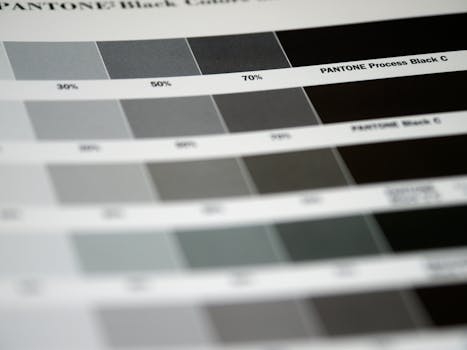 Photo by Brett Jordan on Pexels
Detailed Feature Comparison Table
| Feature | Adobe CC | CorelDRAW | Affinity | Canva | Placeit | Figma | Fotor | Visme |
|---|---|---|---|---|---|---|---|---|
| CMYK Support | ✅ Full | ✅ Full | ✅ Full | ⚠️ Limited | ❌ | ❌ | ❌ | ❌ |
| PDF/X Export | ✅ | ✅ | ✅ | ⚠️ Basic | ❌ | ❌ | ❌ | ⚠️ Basic |
| Pantone Support | ✅ | ✅ | ⚠️ Manual | ❌ | ❌ | ❌ | ❌ | ❌ |
| Bleed/Crop Marks | ✅ | ✅ | ✅ | ⚠️ Pro only | ❌ | ❌ | ❌ | ❌ |
| Dieline Support | ✅ | ✅ | ✅ | ❌ | ❌ | ❌ | ❌ | ❌ |
| Vector Drawing | ✅ | ✅ | ✅ | ⚠️ Basic | ❌ | ✅ | ❌ | ⚠️ Basic |
| Mockups | ⚠️ Plugin | ❌ | ❌ | ⚠️ Limited | ✅ Full | ❌ | ❌ | ❌ |
| Collaboration | ✅ | ⚠️ | ⚠️ | ✅ | ⚠️ | ✅ Full | ❌ | ✅ |
| One-time Purchase | ❌ | ✅ | ✅ | ❌ | ❌ | ❌ | ❌ | ❌ |
| Free Plan | ❌ | ❌ | Trial only | ✅ | ✅ Limited | ✅ | ✅ | ✅ |
| Mobile App | ✅ | ⚠️ | ✅ iPad | ✅ | ✅ | ✅ | ✅ | ✅ |
| Beginner Friendly | ⚠️ | ⚠️ | ✅ | ✅ Full | ✅ Full | ✅ | ✅ | ✅ |
How to Choose the Right Graphic Design Tool for Print and Packaging
This is where I'll save you from making a $600 mistake. Use these decision points:
You're a professional packaging designer who needs press-ready files
Go with Adobe Creative Cloud or CorelDRAW. Full stop. You need CMYK, Pantone, PDF/X, and bleed control — and both tools deliver without compromise. If your clients or print vendors are specifically in sign-making or industrial print, CorelDRAW may actually be the industry norm in your world. If you're in consumer goods, retail, or agency work, Adobe is the lingua franca.
You're a freelancer watching your budget
Affinity Designer 2 is the move. You pay once, you get professional-grade print output, and the only meaningful sacrifice is a slightly smaller ecosystem. For 90% of packaging projects, it genuinely won't matter.
You're a small business owner doing your own product labels
Canva Pro is your starting point. It's fast, the templates cover most common label and packaging formats, and you don't need to learn design fundamentals from scratch. Just know that for anything going to a professional offset press, you'll want to graduate to something more robust eventually.
You need to present concepts to clients quickly
Layer Placeit on top of whatever primary tool you use. Build your design in Illustrator or Affinity, then use Placeit to wrap it into a photorealistic mockup for the client deck. This combo is genuinely powerful and it'll make your presentations look like you spent days on them when it actually took minutes.
Your team needs to collaborate across multiple stakeholders
Figma wins on collaboration, hands down. If you're managing brand reviews, getting client approvals, and documenting design systems, Figma is the shared workspace that keeps everyone aligned — even if final press files need to come out of a different tool entirely.
You produce a lot of brand documentation alongside design work
Visme or Canva handle the sell sheets, pitch decks, and brand guides that packaging designers often get pulled into. Keep one of these in your toolkit for those "while you're at it" client requests — because those requests will come.
Verdict: Top Picks for Different Use Cases
Best Overall: Adobe Creative Cloud Adobe Creative Cloud — It's the industry standard for a reason. If print and packaging is your profession, this is your tool.
Best Value: Affinity Designer Affinity Designer — A one-time payment for professional print capabilities is genuinely hard to argue with. Honestly, I think more people should be using this.
Best for Beginners: Canva Try Canva Pro — Fast, approachable, and surprisingly capable for small-batch and simple packaging needs.
Best for Mockups: Placeit Placeit — Nothing else comes close for speed-to-photorealistic-result in the mockup category.
Best for Teams: Figma Try Figma — Collaboration features are class-leading, even if it's not a pure print tool.
Best Budget Alternative to Adobe: CorelDRAW Coreldraw — Especially if you're in sign-making or industrial print environments where it's practically the house standard.
You Might Also Like
- Figma vs Adobe Creative Cloud for UI Design 2026: The Honest Comparison
- Canva vs Visme for Business Presentations 2026: Which One Actually Wins?
Frequently Asked Questions
What's the best graphic design tool for print and packaging designers in 2026?
Adobe Creative Cloud remains the gold standard for professional print and packaging work in 2026. It offers the most complete feature set — CMYK, Pantone, PDF/X export, dieline support — and it's universally accepted by print vendors worldwide. If budget is a concern, Affinity Designer 2 is the strongest professional alternative at a one-time cost.
Do I need CMYK support in my design tool?
Yes — absolutely, unambiguously yes, if you're sending files to a commercial printer. RGB colors are designed for screen display and will shift noticeably when converted to CMYK at press. Sometimes dramatically so. Adobe CC, CorelDRAW, and Affinity Designer all support native CMYK workflows. Canva, Figma, and Fotor do not offer professional CMYK control, and that's a hard stop for production work.
Can I use Canva for professional packaging design?
For simple labels, small-batch product packaging, or client concept presentations — sure. But for professional commercial printing, especially offset or flexographic printing, Canva's print control limitations (no true CMYK, limited PDF/X support) make it unsuitable for final press files. Use it for early-stage ideation or small business packaging, not production-ready deliverables.
Is Affinity Designer good enough to replace Adobe Illustrator for packaging work?
For the vast majority of packaging projects, yes — and I say that after genuinely testing it on real client work. Affinity Designer 2 supports CMYK, bleed, crop marks, and PDF/X export with professional-grade precision. The main gaps are native Pantone library integration (which requires manual swatch setup) and the occasional vendor who specifically requests native Illustrator (.ai) files. Worth a conversation upfront, but for most workflows it's a completely legitimate professional alternative.
What's the difference between Placeit and a full design tool?
Short answer: Placeit is a mockup platform, not a design tool. You can't build complex packaging designs from scratch in Placeit the way you can in Illustrator or CorelDRAW. Use it to present finished designs — not create them.
Do packaging designers need multiple tools?
Many professional packaging designers actually use two or three tools together, and in my experience that's the right approach. A common pro workflow looks like this: Illustrator or Affinity Designer for the actual design and technical file preparation, Placeit or Photoshop for client mockups, and Figma or Canva for collaboration and brand documentation. Don't feel like you have to pick just one — the right combination depends on your specific workflow needs and client expectations. The best toolkit is the one that actually matches how you work, not the one that looks most impressive on a resume.